This article explains how to install Yotpo Loyalty & Referrals on BigCommerce, how your BigCommerce orders, customers, and coupons connect to your program, and which features are supported.
Before you begin
You need admin access to your BigCommerce store.
Your store must use a Stencil theme.
Each BigCommerce store connects to one Loyalty & Referrals program.
Shoppers must be logged in to their BigCommerce customer account to see their points balance and redeem rewards.
Step 1: Install the app
In your BigCommerce admin, go to Apps > App marketplace.
Search for Yotpo Loyalty and Referrals and click the app.
Click Install. The app page lists the store permissions the app needs. If the app is already installed, you'll see Launch instead.
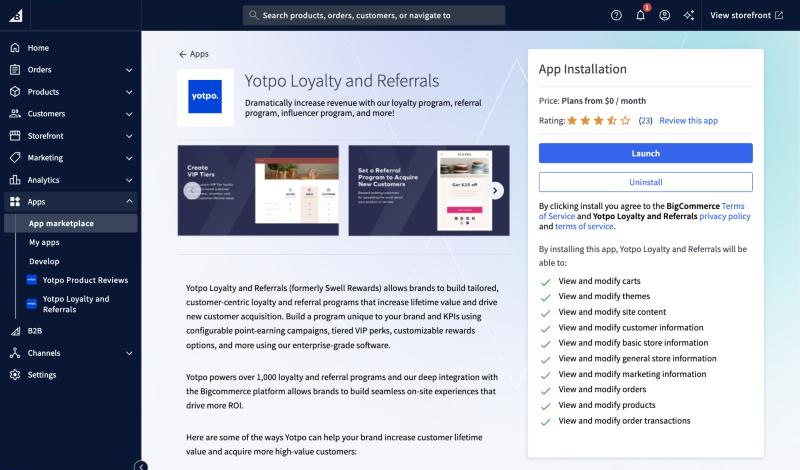
Follow the prompts to confirm the installation.
You're redirected to your Yotpo Loyalty & Referrals admin.
When the app is installed, Yotpo automatically:
Connects to your store and starts receiving order and customer updates.
Imports your existing BigCommerce customers and past orders. Past orders are imported for your records only. They don't earn points.
Your program starts paused, so shoppers won't see it until you launch it in Step 5.
Please note: You can open Yotpo Loyalty & Referrals at any time from Apps > My apps in your BigCommerce admin.
Step 2: Add the Yotpo loader to your store
The Yotpo loader is a single script that loads all your Loyalty & Referrals on-site widgets, such as your Rewards page and the checkout module, and recognizes logged-in shoppers. You add it once to every page of your store.
In Yotpo Loyalty & Referrals, go to On-Site Widgets > Rewards Page.
On your Rewards page, click the ⋮ menu and select Get Code.
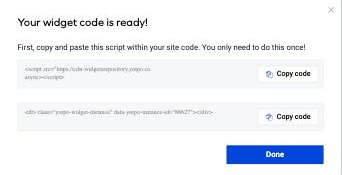
Next to the first code snippet (the script), click Copy code.
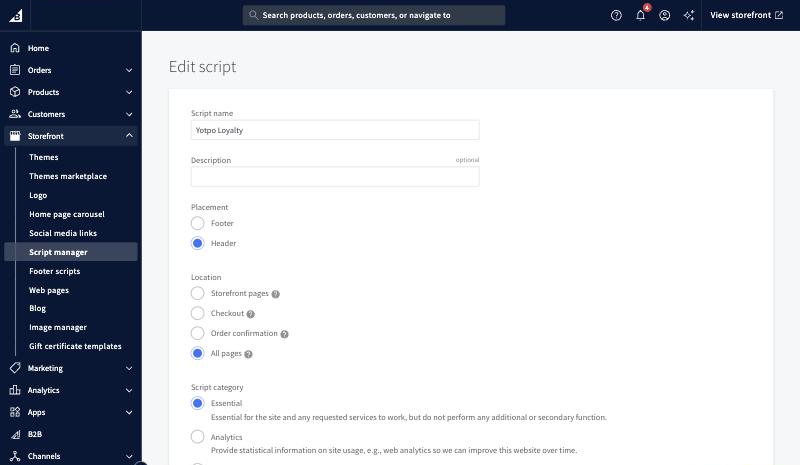
In your BigCommerce admin, go to Storefront > Script manager and click Create a script.
Fill in the script details:
Script name: Yotpo Loyalty
Placement: Header
Location: All pages
Script category: Essential
Script type: Script
In Script contents, paste the script you copied. It looks like this:
<script src="https://cdn-widgetsrepository.yotpo.com/v1/loader/YOUR_GUID" async></script>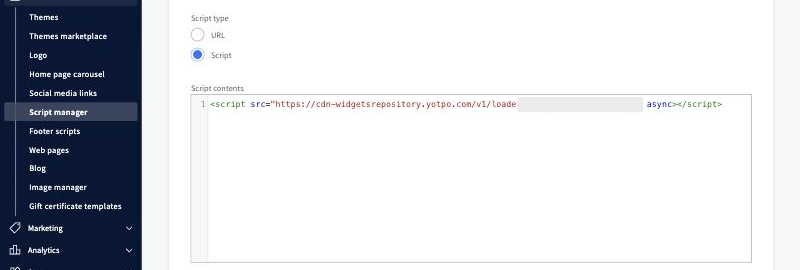
Click Save.
Please note: Add the Yotpo loader only once. If Script Manager already lists a script that containscdn-widgetsrepository.yotpo.com/v1/loader, such as the Yotpo loyalty loader, which the app can add during installation, you don't need to add it again.
Step 3: Add your Rewards page
Your Rewards page shows shoppers how to earn and redeem points, their balance, and your referral program. You build it in Yotpo and display it on a BigCommerce web page.
In Yotpo Loyalty & Referrals, go to On-Site Widgets > Rewards Page and customize your page.
Click the ⋮ menu on your Rewards page, select Get Code, and next to the second code snippet (the
<div>), click Copy code.In your BigCommerce admin, go to Storefront > Web pages and click Create a Web Page.
Under Page Type, select Contain content created using the WYSIWYG editor below.
Set Page Name to Rewards. BigCommerce sets the Page URL to
/rewards/.In the Page Content toolbar, click the Source code button (<>), paste the code you copied, and confirm. It looks like this:
<div class="yotpo-widget-instance" data-yotpo-instance-id="YOUR_INSTANCE_ID"></div>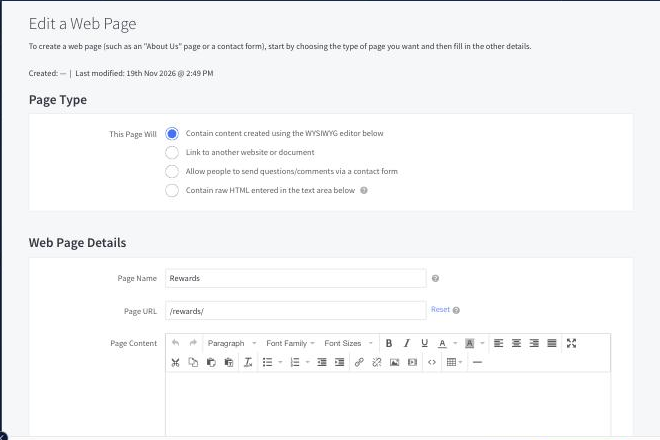
Click Save & Exit.
Your Rewards page is now live at yourstore.com/rewards.
Step 4: Set your order and eligibility settings
Earning & redemption
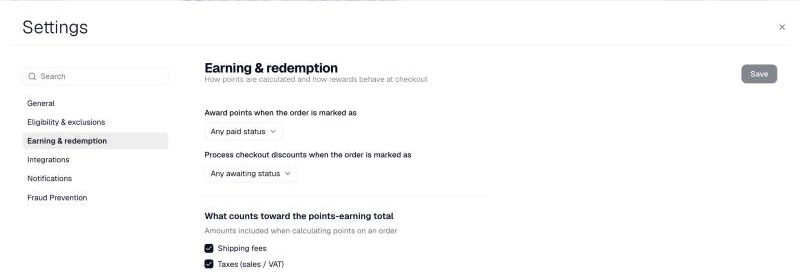
In Yotpo Loyalty & Referrals, go to Program Settings > Earning & redemption.
Set the following:
Setting | What it does | Default |
|---|---|---|
Award points when the order is marked as | The BigCommerce order status that awards points. Options: Any paid status, Awaiting fulfillment, Awaiting shipment, Awaiting pickup, Shipped, Completed. | Any paid status |
Process checkout Discounts when the order is marked as | The order status at which a reward used at checkout is marked as used, and its points are deducted. | Any awaiting status |
What counts toward the points-earning total | Whether Shipping fees and Taxes (sales / VAT) are included when calculating points. Discounts are always subtracted. | Both included |
Click Save.
Tip: Choose Shipped or Completed to award points only after an order is on its way. This avoids awarding points on orders that are later canceled.
Eligibility & exclusions
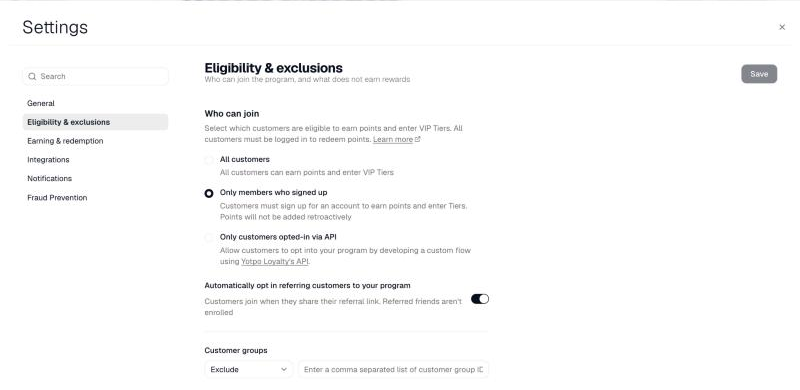
Go to Program Settings > Eligibility & exclusions.
Under Who can join, choose which shoppers can earn points:
All customers: every customer can earn points.
Only members who signed up: shoppers must create a BigCommerce customer account to earn points.
Only customers opted in via API: you opt shoppers in through your own flow.
Under Customer groups, you can Exclude or Include specific BigCommerce customer groups. Enter the customer group IDs as a comma-separated list. Available on Premium and Enterprise plans.
Click Save.
Step 5: Launch your program
When your earning rules, rewards, and Rewards page are ready:
Go to Program Settings > General.
Set Program status to Active.

For a full checklist, see Loyalty & Referrals Account Setup Checklist.
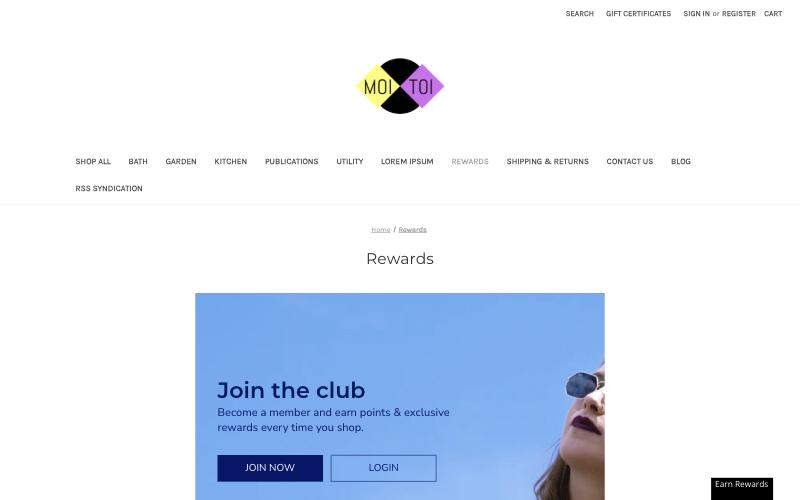
To check that everything works, go to yourstore.com/rewards and log in as a test customer. The page should show the customer's points balance.
Supported features on BigCommerce
Earning rules
Earning rule | Supported | Notes |
|---|---|---|
Points for Purchases | ✅ | You can limit the rule to Required product IDs, Required product category IDs, or specific BigCommerce customer group IDs. |
Goal Spend and Punch Card | ✅ | |
New Member Reward (account creation) | ✅ | See "Account creation points" below. |
Birthday Reward and Anniversary Reward | ✅ | |
Code Entry, Custom Action, Read Content, Receipt Upload | ✅ | |
Social actions (Facebook, Instagram, X) | ✅ | |
Yotpo Product, Photo and Video Review | ✅ | Requires Yotpo Reviews. |
SMS sign-up | ❌ | Not available on BigCommerce. |
Rewards
Reward | Supported | Notes |
|---|---|---|
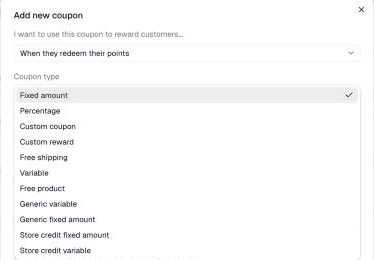
Fixed amount ($ off) | ✅ | Created as a BigCommerce coupon code. |
Percentage (% off) | ✅ | Created as a BigCommerce coupon code. |
Free shipping | ✅ | Created as a BigCommerce free shipping coupon. |
Variable (points for $ off) | ✅ | The shopper chooses how many points to redeem. |
Store credit (fixed amount or variable) | ✅ | Added to the shopper's BigCommerce store credit. The shopper needs a BigCommerce customer account. |
Free product | ✅ | Premium and Enterprise plans. Uses the Free Products widget. The shopper needs a paid product in the cart. |
Custom coupon (your own codes) | ✅ | Premium and Enterprise plans. See Creating a Custom Coupon. |
Custom reward (non-discount) | ✅ | |
Gift cards | ❌ | BigCommerce gift certificates aren't available as a reward. |
Referrals and tiers
Feature | Supported | Notes |
|---|---|---|
Referral program | ✅ | Set it up under Manage Program > Referral. See Setting up your referrals program. |
Referral discount auto-applied at checkout | ✅ | |
Loyalty Tiers | ✅ | Set it up under Manage Program > Loyalty Tiers. |
Sync tiers to BigCommerce customer groups | ✅ | Optional. See "Tiers and customer groups" below. |
Free shipping as a tier perk | ❌ | Available only on Shopify. Use a free shipping reward instead. |
On-site and checkout
Feature | Supported | Notes |
|---|---|---|
Rewards page and on-site widgets | ✅ | Requires the Yotpo loader. |
Logged-in shopper recognition | ✅ | Automatic, through BigCommerce's customer login. Requires the Yotpo loader. |
Redeem rewards in checkout (Checkout On-site Module) | ✅ | Pro, Premium and Enterprise plans. The reward code is applied to the checkout automatically. |
Free product redemption inside the checkout module | ❌ | Use the Free Products widget instead. |
Store setup
Feature | Supported | Notes |
|---|---|---|
Stencil themes | ✅ | |
Multi-currency | ❌ | Points are calculated from the order total in the currency the order was placed in. |
Multi-storefront (multiple channels on one BigCommerce store) | ❌ | All storefronts on one BigCommerce store share one program. Orders aren't separated by storefront. |
Product exclusions from earning | ❌ | Not available as a BigCommerce setting. To limit earning to certain products, use Required product IDs or Required product category IDs on the earning rule. |
How points work with BigCommerce orders
Earning points
Points are awarded when an order reaches the status you set in Award points when the order is marked as.
Each order earns points once. Later status changes don't award points again.
Points are calculated on the order total after discounts, with shipping and tax included or excluded according to What counts toward the points-earning total.
Guest orders are matched to a customer by billing email. Whether a guest earns points depends on your Who can join setting.
Orders placed before you installed the app don't earn points.
Refunds and cancellations
When you mark an order as Refunded in BigCommerce, the points earned on it are deducted.
When an order is marked Partially Refunded, points are deducted in proportion to the refunded amount.
If the shopper used a variable reward (points for $ off) on a refunded order, the points they spent on the refunded items are returned, up to the amount they redeemed.
Marking an order Canceled or Declined doesn't deduct points. To remove points from a canceled order, refund it in BigCommerce or adjust the customer's points manually.
Account creation points
New Member Reward points are awarded when a shopper creates a BigCommerce customer account. The account must have been created in BigCommerce within the last 3 days to qualify, so existing customers imported when you installed the app don't receive account creation points. To change this, contact Yotpo Support.
Customer sync
New and updated BigCommerce customers sync to Loyalty & Referrals automatically, including name, phone, marketing consent and customer group.
If a customer's email changes in BigCommerce, Loyalty & Referrals updates it unless another loyalty member already uses that email.
When you delete a customer in BigCommerce, they're removed from your program's members. Their points history is kept.
How rewards work in BigCommerce
Coupon codes
When a shopper redeems a discount or free shipping reward, Yotpo creates a unique coupon code in BigCommerce:
The coupon appears in Marketing > Coupon Codes with the name
Reward name (CODE).Each code can be used once per customer.
The minimum purchase amounts and expiration dates you set on the reward apply to the coupon.
If you enter product IDs in Only applies to these specific product IDs when you create the reward, the coupon applies only to those products.
Expired codes are disabled automatically once a day.
If a redemption is reversed before the code is used, Yotpo deletes the code from BigCommerce.
Please note: Don't edit or delete Yotpo coupons in BigCommerce. Changes you make there aren't synced back to Yotpo.
Tiers and customer groups
You can sync each shopper's tier to a BigCommerce customer group, for example, to show tier-specific pricing. To enable this, contact Yotpo Support.
When this is on:
Each shopper is moved into a customer group named after their tier. Yotpo creates the group if it doesn't exist.
Shoppers without a tier are moved to a group named
swell_no_vip_tier.Shoppers in customer groups you've excluded from the program aren't moved.
Important: A BigCommerce customer can belong to only one customer group. Syncing tiers replaces the shopper's current customer group. If you already use customer groups for wholesale or other pricing, don't enable this.
Limitations
Multi-currency isn't supported on BigCommerce.
Multi-storefront: all storefronts on one BigCommerce store share one program.
Canceled orders don't deduct points. Only refunds do.
Product exclusions from earning aren't available as a setting.
Gift card rewards and free shipping as a tier perk aren't available.
SMS sign-up isn't available on BigCommerce.
Free products can be redeemed with the Free Products widget, not inside the Checkout On-site Module.
Referral fraud checks on BigCommerce match shoppers by IP address only, because BigCommerce doesn't share browser details with apps.
FAQ
Do I need to edit my theme files?
No. You add the Yotpo loader in Script Manager (Step 2) and your Rewards page as a BigCommerce web page (Step 3).
My Rewards page is blank or doesn't show a logged-in shopper's points. What should I check?
Make sure the Yotpo loader is in Script Manager with the location All pages, that the web page contains the Rewards page code from Get Code, and that the shopper is logged in to their BigCommerce customer account.
Why didn't a customer get points for their order?
Check the order's status in BigCommerce. Points are awarded only when the order reaches the status in Award points when the order is marked as. Also check your Who can join and Customer groups settings. Orders placed before you install the app don't earn points.
Why does a customer still have points after I canceled their order?
Canceling an order in BigCommerce doesn't deduct points. Refund the order, or adjust the customer's points manually.
What happens if I uninstall the app?
Your program stops receiving orders and customers from BigCommerce. Remove the Yotpo loader from Script Manager and delete your Rewards web page yourself. Coupons already issued stay active in BigCommerce until they expire or you delete them.