---
title: "Syndication Implementation Guide"
slug: "syndication-implementation-guide"
tags: ["Reviews ", "Shopify", "Shopify Plus", "Adobe Commerce (Magento)", "BigCommerce", "WooCommerce", "Volusion", "Salesforce Commerce Cloud", "Custom"]
updated: 2023-06-27T13:54:52Z
published: 2023-06-27T13:54:52Z
canonical: "support.yotpo.com/syndication-implementation-guide"
---
> ## Documentation Index
> Fetch the complete documentation index at: https://support.yotpo.com/llms.txt
> Use this file to discover all available pages before exploring further.
# Syndication Implementation Guide
Products
Reviews
###### Supported plans
Premium, Enterprise
###### eCommerce Platform
Shopify, Shopify Plus, Adobe Commerce (Magento), BigCommerce, WooCommerce, Volusion, Salesforce Commerce Cloud, Custom
[Syndication](/v1/docs/about-syndication) works by using a unique identifier to match products in the source and destination accounts. Content is then synchronized once every 24 hours from the source account/product to the target account/product.
## How it works
Your Yotpo Customer Success Manager will be able to configure your accounts for syndication according to your specifications, however, you must first provide your CSM with the product and account information outlined in this guide. Once your product identifiers have been assigned and matched accordingly, contact [Yotpo Support](https://my.yotpo.com/contact_support) and let us know which parameter you wish to use for Syndication.
Tip:You can read more about unique identifiers [here](/v1/docs/unique-identifiers)
## Setting up syndication
It is important to verify that products are correctly assigned a unique identifier and that the identifiers are identical (including matching case) in the source **and** destination products.
You may use more than one type of identifier to match products.
Yotpo currently supports the following standard product identifiers:
- **UPC** (Universal Product Code)
- **MPN** (Manufacturer Part Number) + **Brand**
- **ISBN** (International Standard Book Number)
- **SKU** (Stock-keeping unit)
- **Product ID** (The ID associated with every order per eCommerce platform)
ImportantIf you edit or delete the matching product specifications in either the source or destination product, the syndication connection between the two products is lost and any syndicated reviews are deleted and cannot be recovered.
## Setting up product identifiers
You may choose between one of the methods listed below to assign product identifiers which will ensure that they are read correctly by Yotpo and syndicated successfully.
### Set up for Shopify store owners
Shopify users benefit from an automated process that does not require you to update product identifiers. It is, however, recommended to review relevant product identifiers in Product > Inventory to ensure that all unique identifiers (SKU, ISBN, UPC, etc.) are the same across all of your stores for the products you wish to syndicate.
### Set up by product catalog
You may use the Product Catalog to update product identifiers. This method allows you to add new products and their identifiers or update existing products with their identifiers.
- If you are *importing* a new product (you haven't sent it to Yotpo via the API), refer to the instructions [here](/v1/docs/importing-product-catalogs).
- If you are *updating* the product specs for an existing product (already sent to Yotpo or reviewed in the past), refer to the instructions [here](/v1/docs/updating-the-product-catalog).
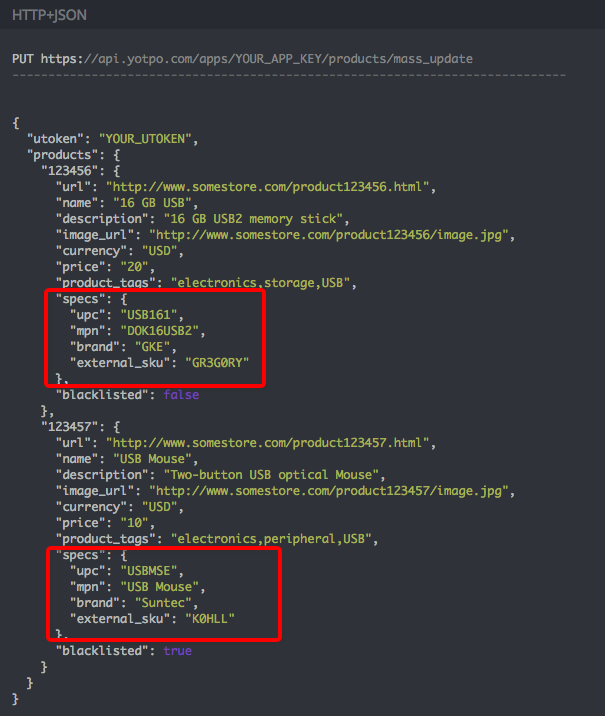
### Set up by API endpoint
The API is a direct and useful way to update product specs.
For customers who already use the API calls, this is the recommended way to update specs.
Please note:Product specifications you assign in the API calls will override product specifications you defined in the widget or previous API calls for the same product.
#### Assigning product specifications
Use the [specs] parameter in the [Create product](https://core-api.yotpo.com/reference/create-product) API call.
#### Editing product specifications
Submit the product specifications again in the same order, replacing the product specifications you wish to change using the [Update product](https://core-api.yotpo.com/reference/update-product) API call.
#### Deleting product specifications
Submit the product specifications again in the same order, replacing the product specifications you wish to delete with "".
### Set up by widget
You may use the widget to update product identifiers, however, please consider the following limitations of this method:
1. Product specifications cannot be changed or deleted using the widget.
2. Product specifications will be applied within the Yotpo system only after the first review is generated for that product.
#### Assigning product specifications using the widget
1. Open the main widget on your product page.
2. Add the *data-product-spec* field to the div.
**Please note:**
- The *data-product-spec* tag must be in lowercase.
- Trailing spaces are automatically stripped in the product specification.
- Any combination of leading zeros (“0”), leading spaces, and leading dashes (“-“) are automatically stripped in the product specification.
- The product specification value is case-sensitive.
- The product specification value “N/A” is invalid in any case, and is ignored.
- The data-product-id attribute only supports alphanumeric (a...z, A...Z, 0...9) and "_" and "-" symbols.
```markup
```
#### Example
To add the ISBN product specification “paper” to PROD1234:
```markup
```
## Final steps
Once your product identifiers have been assigned and matched accordingly, contact [Yotpo Support](https://my.yotpo.com/contact_support) and let us know which parameter you wish to use for Syndication. Syndication will only be enabled once a Yotpo representative sets it up.
Tip:Once Syndication has been implemented per the steps in this guide, you may configure your syndication settings in the Yotpo Admin using the [Syndication Configuration Guide](/v1/docs/syndication-configuration-guide).