Is this article for me?
Multi-language support for Yotpo Loyalty & Referrals extensions can be enabled on Shopify and Shopify Plus stores when:
You have set up multiple languages (either within a single market or through Shopify Markets), and
Shopify Translate & Adapt is installed.
Goals and Outcomes
Yotpo’s extensions support translating custom content using Shopify Metaobjects, allowing full localization for the following extensions:
In this article, you’ll learn how to enable multi-language support so you can translate these extensions in multiple languages on your Shopify store.
How Multi-Language Support Works
When multi-language is enabled, the extension’s content and settings are stored in Shopify Metaobjects instead of the standard app block settings. This allows you to override app block text through metaobjects and translate the content using the Translate & Adapt app.
Once you turn on the metaobject override (see Step 4), metaobjects become the single source of truth for the extension:
Any text in the metaobjects replaces the text in the app block settings in Shopify's checkout editor. Text you edit in the editor is ignored.
Manage and update all extension content in the metaobjects from that point on.
Make sure the true/false settings in the editor match the ones in the metaobjects.
Important
You can’t translate the Shopify Checkout extension if more than one free shipping reward is enabled. To use multi-language support, make sure only one free shipping reward is active.
How to Enable Multi-Language in the Extensions
Step 1: Make Sure the Extension is Added to Your Shopify Theme
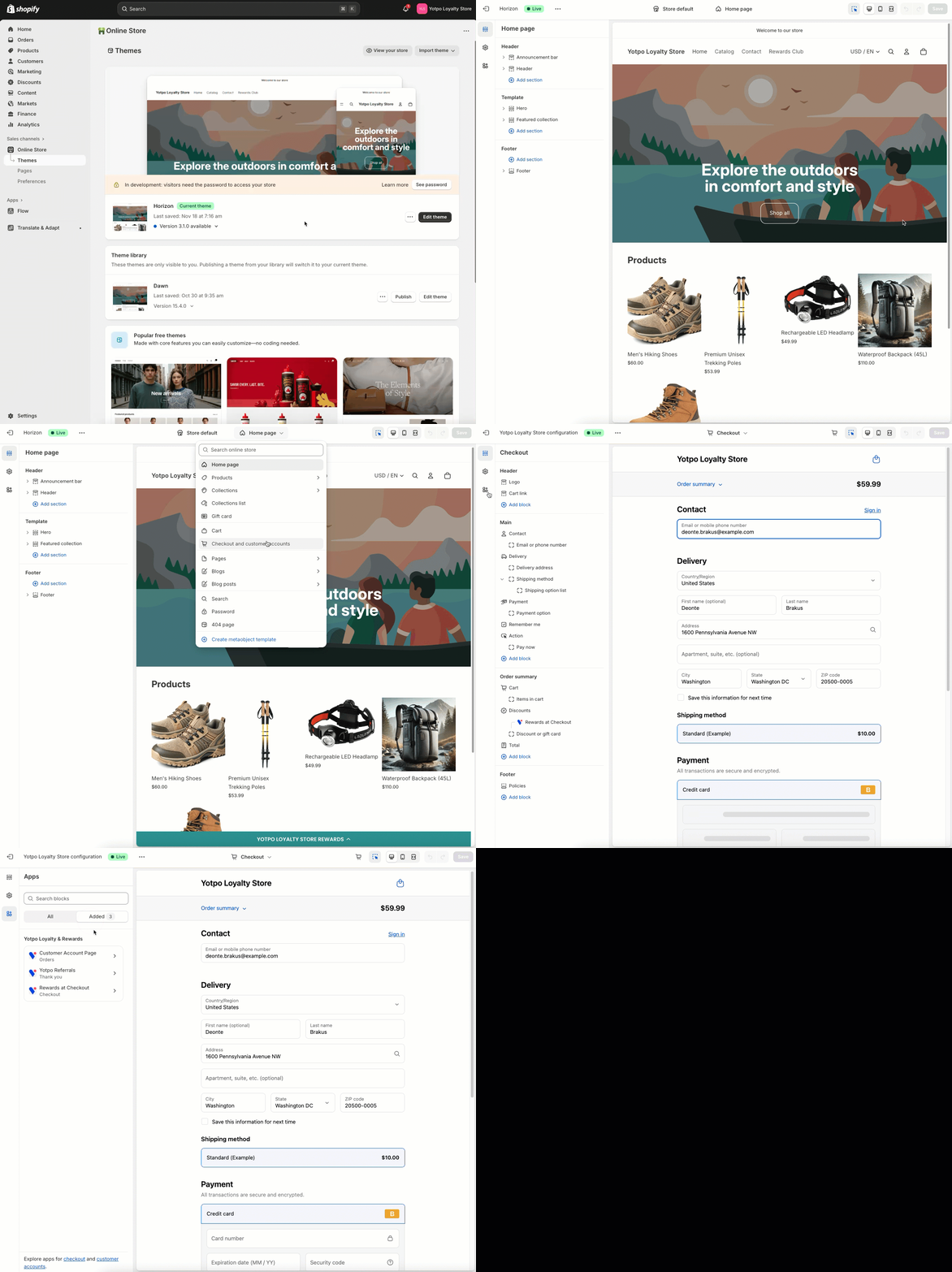
Before translating, make sure the extension you want to localize is added to your Shopify theme:
In your Shopify admin, go to Online Store > Themes.
Next to your current theme, click Edit theme.
Open the Checkout and customer accounts section.
Go to Apps.
If the extension is not listed under Added, click the plus icon to add it:
Add the Customer Account Page extension to the Orders page.
Add the Yotpo Referrals extension to the Thank You page.
Add the Rewards at Checkout extension to the Checkout page (for Shopify Plus only).
Save your changes.
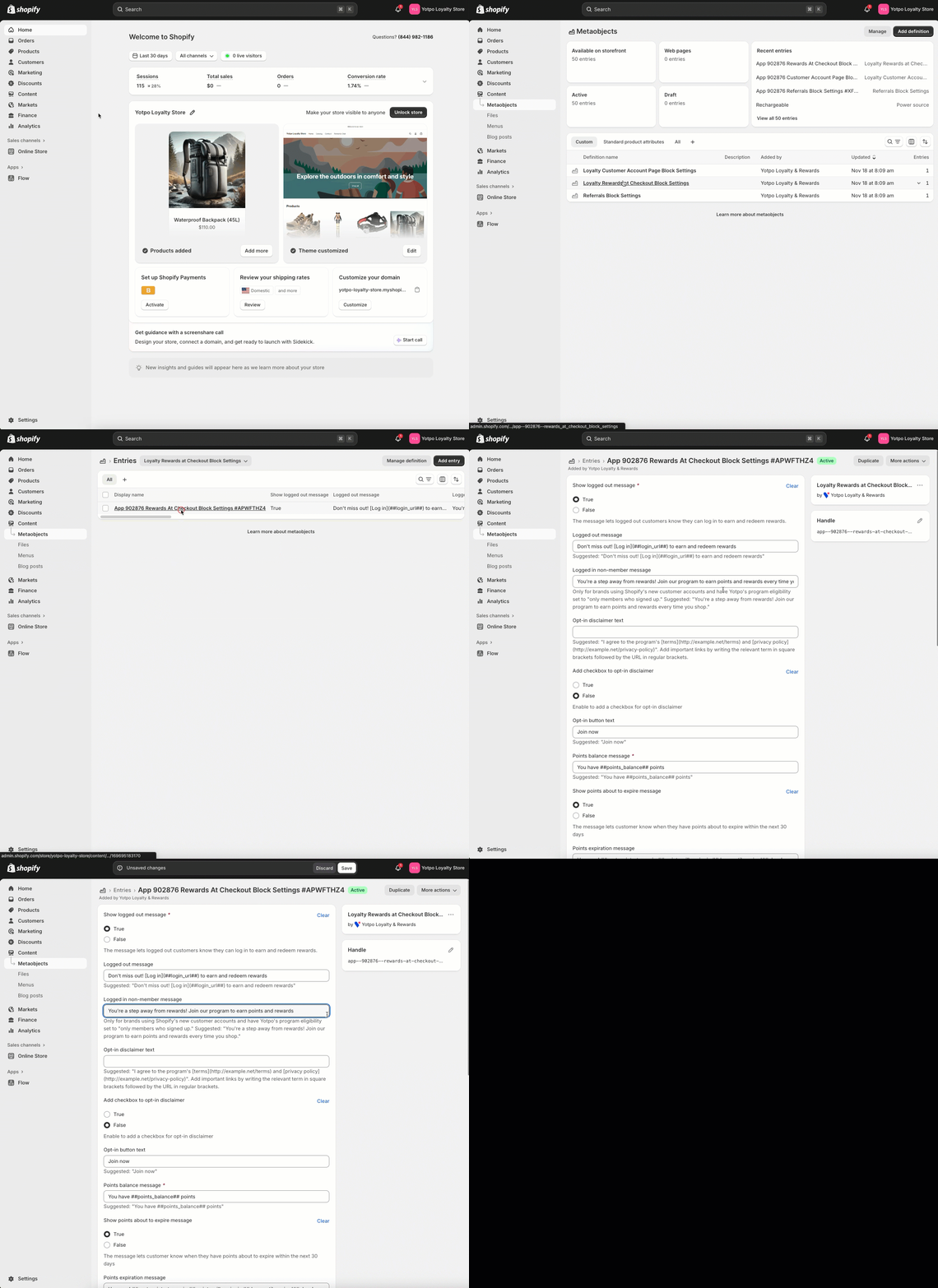
Step 2: Open and Customize the Extension’s Metaobjects
Note
If you don’t see the metaobjects, log in to the Yotpo app through Shopify and follow the steps below.
Tip
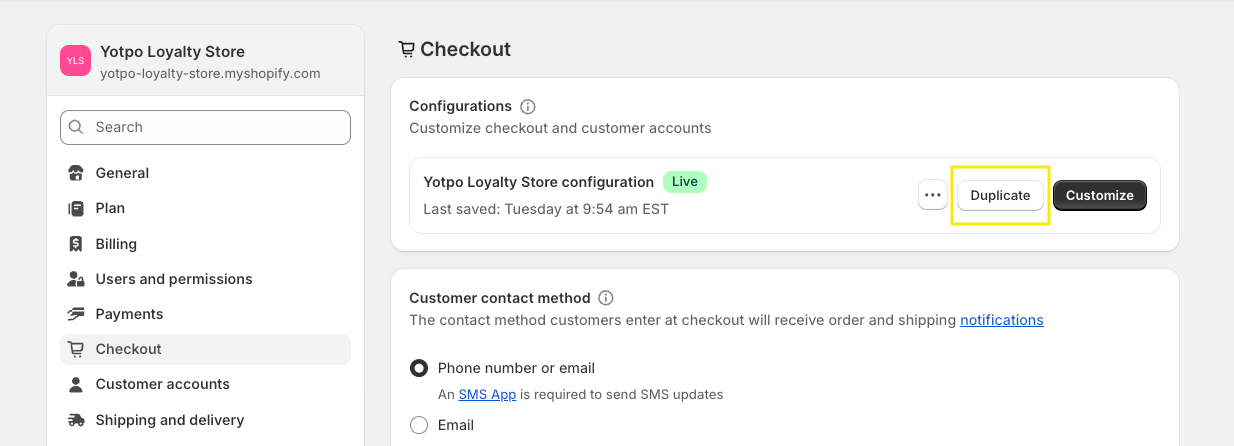
For the Shopify Checkout extension, you can work safely on a duplicate checkout configuration. To do that, go to Settings > Checkout and click Duplicate on your live configuration.
Then enable the multi-language setup and test on the duplicate. When ready, click Publish.
To configure the metaobjects:
In your Shopify admin, go to Content > Metaobjects.
Select the extension you want to translate. These metaobjects contain all customizable text fields shown to your shoppers.
Click Loyalty Rewards at Checkout Block Settings to update the Shopify Checkout extension.
Click Loyalty Customer Account Page Block Settings for the account extension on the Orders page.
Click Referrals Block Settings for the referrals extension on the Thank You page.
Select the Yotpo app entry (titled: App 902876 Extension name Block Settings #...).
Update any default text if needed.
Important
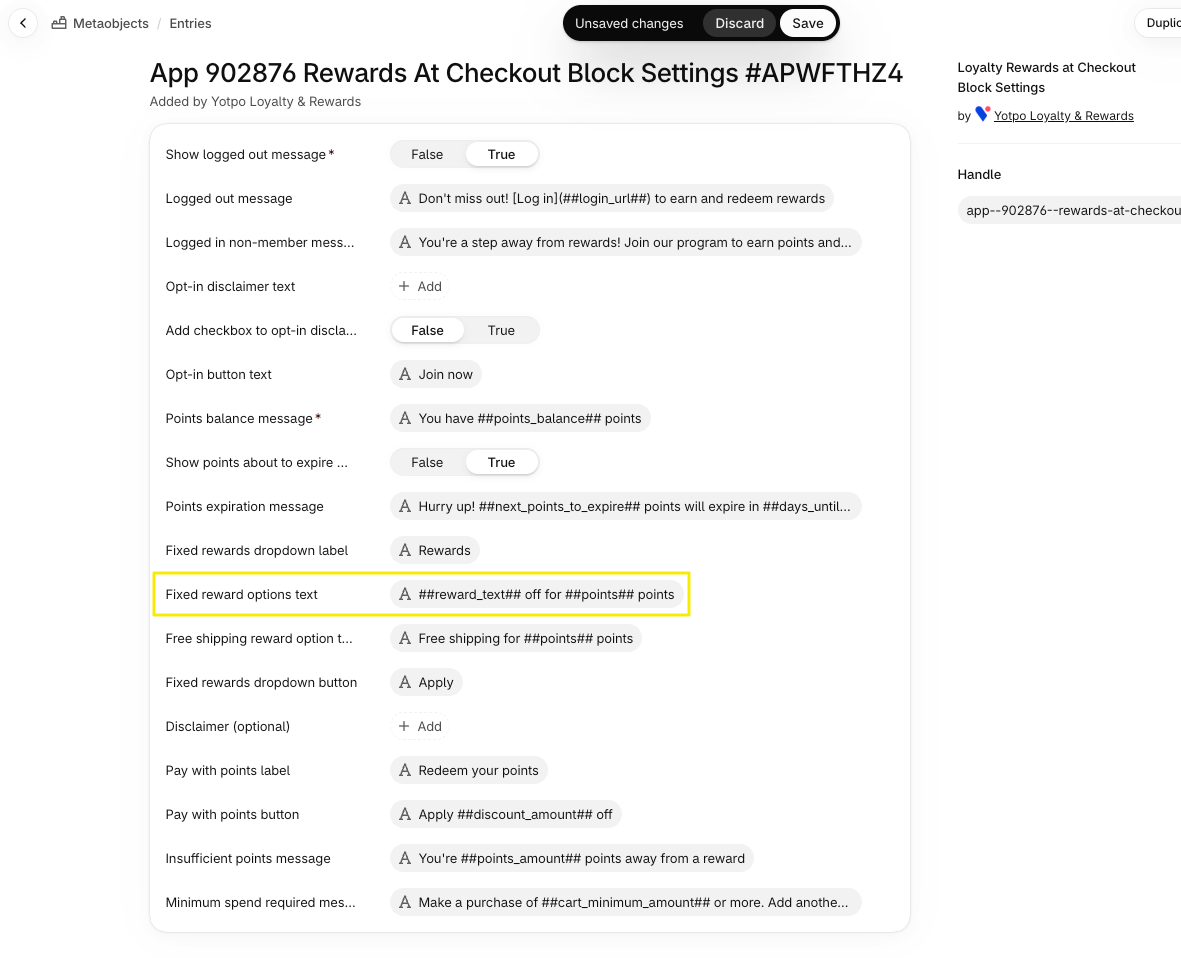
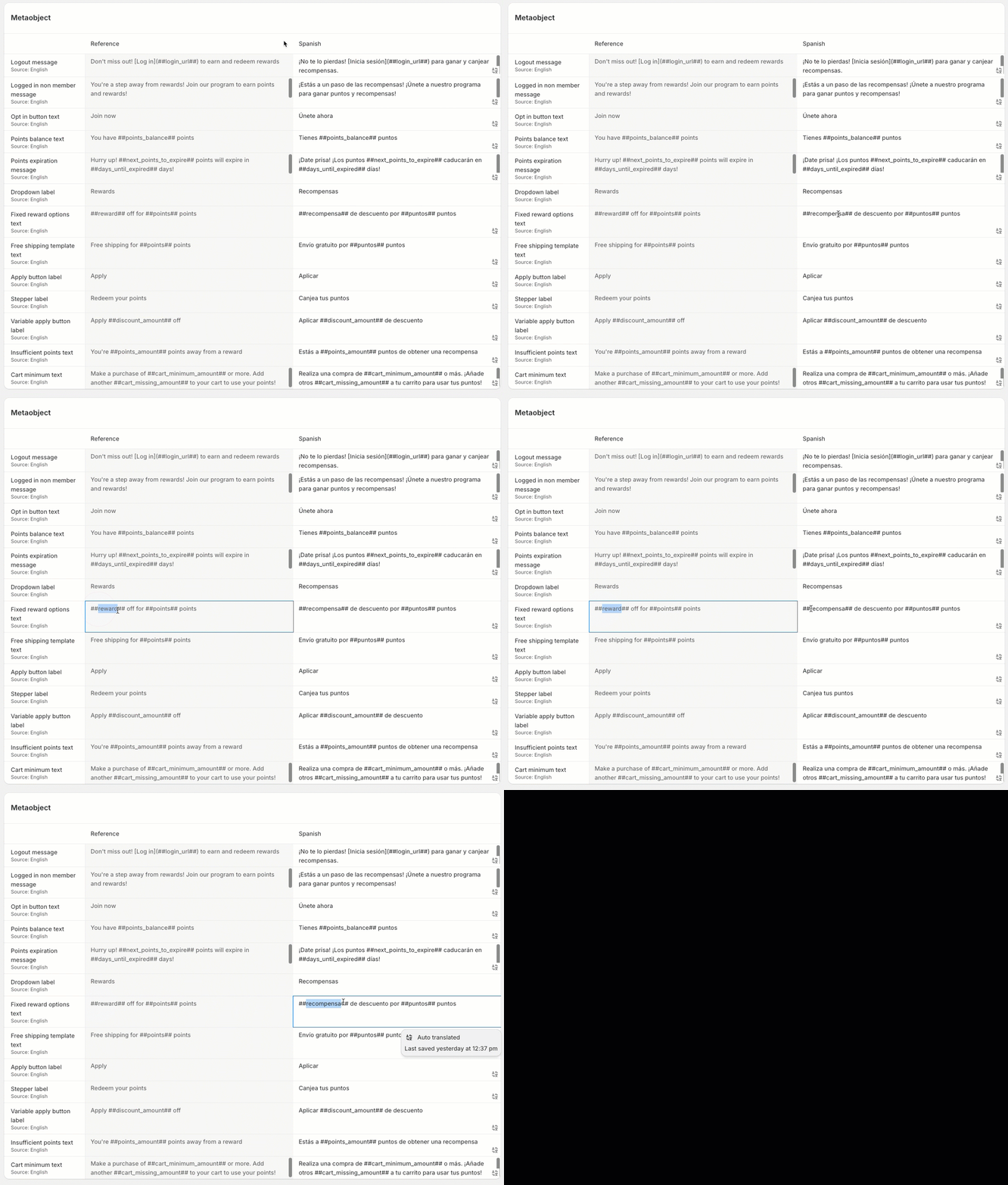
For the Rewards at Checkout extension, use the ##reward_text## placeholder (not ##reward##) in the Fixed reward options text field of the Loyalty Rewards at Checkout Block Settings metaobject. This is the recommended text for this field.
##reward_text## shows each reward exactly as it's written in your Yotpo Loyalty admin.
##reward## can show reward amounts that don't match the discount applied at checkout, as the extension doesn't support multi-currency placeholders.
New stores already use ##reward_text## by default. If you set up the extension earlier, check this field and update it if it still uses ##reward##.
Tip
Since the reward text from Yotpo Loyalty isn't translated, keep it to the amount only (for example, $5 rather than $5 off). If you sell in more than one currency, you can also add a short note to the widget text letting customers know that rewards are shown in your store's main currency.
Step 3: Translate the Extension Text
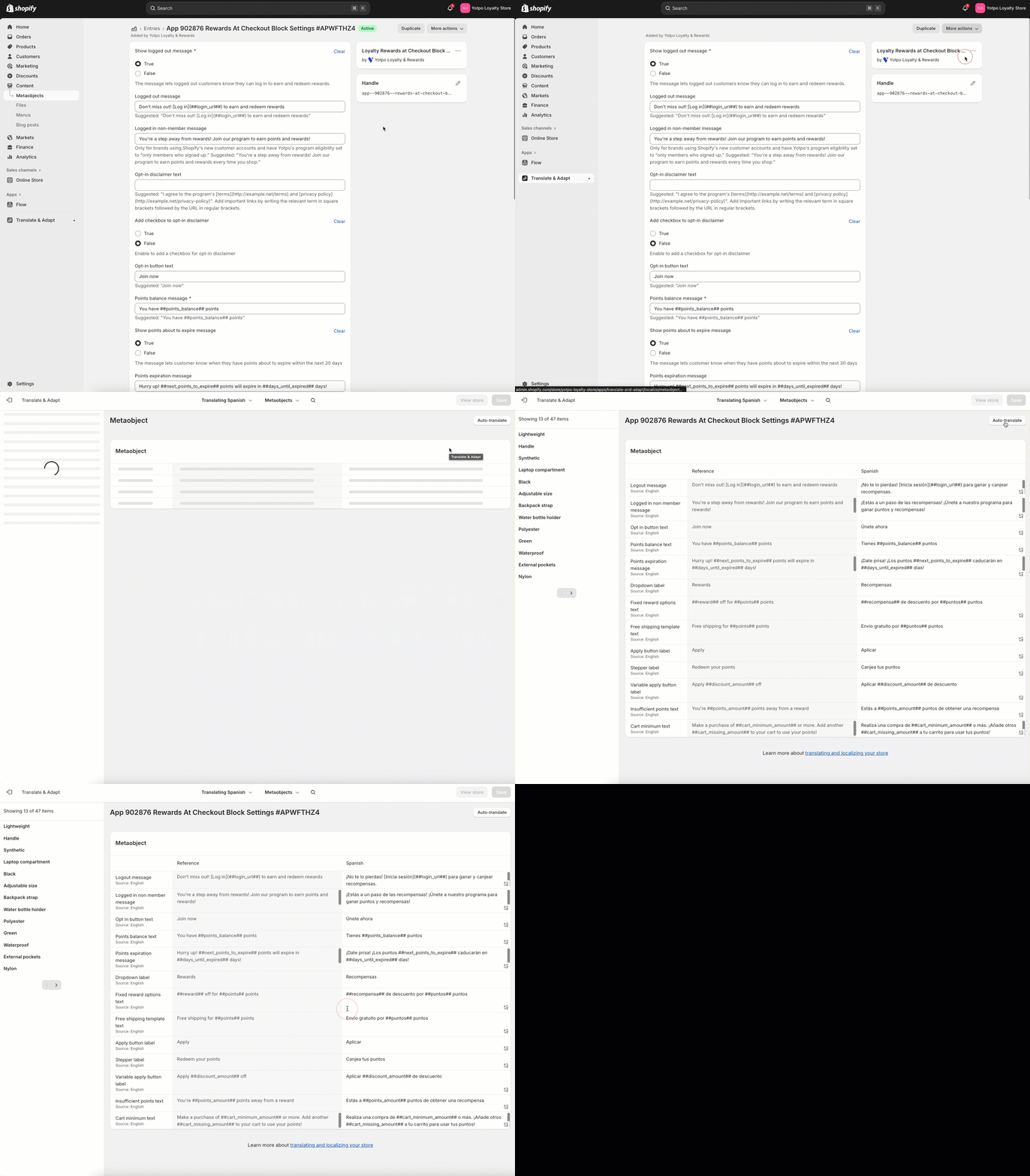
Once your metaobject content is ready, you can translate it into your store languages:
From the extension’s metaobjects page, click More actions > Localize.
If you don’t see this option, install Shopify’s Translate & Adapt app first. Learn more about localization and translation in Shopify.
Choose how to translate the text:
Manually translate each text field
Click Auto-translate
Or use a combination of both
Click Save when done.
Important
Do not translate placeholders. If auto-translation modifies them, copy the placeholder from the Reference column and restore it.
If you changed the Rewards at Checkout placeholder to ##reward_text## in Step 2, check that each existing translation uses it too.
Step 4: Enable Metaobject Overrides in the Extension Editor
To make sure that the text from the metaobjects appears in your store, you must enable the override in the extension’s app block settings. Once this setting is enabled, any text configured in the Shopify editor will be ignored, and the metaobject content will fully replace it.
To enable the setting:
Open the extension’s app block settings in the Shopify theme editor.
Scroll down to Metaobjects for block settings.
Set the option to True.
Click Save.
Step 5: Preview the Translated Version
Because metaobjects are managed outside of the Shopify theme editor, previewing the updates requires viewing the live storefront. To preview the translated extension:
Open the page where the extension appears (Checkout, Orders page, or Thank You page).
Refresh the page after each change.
Allow up to 30 seconds for updates to appear.